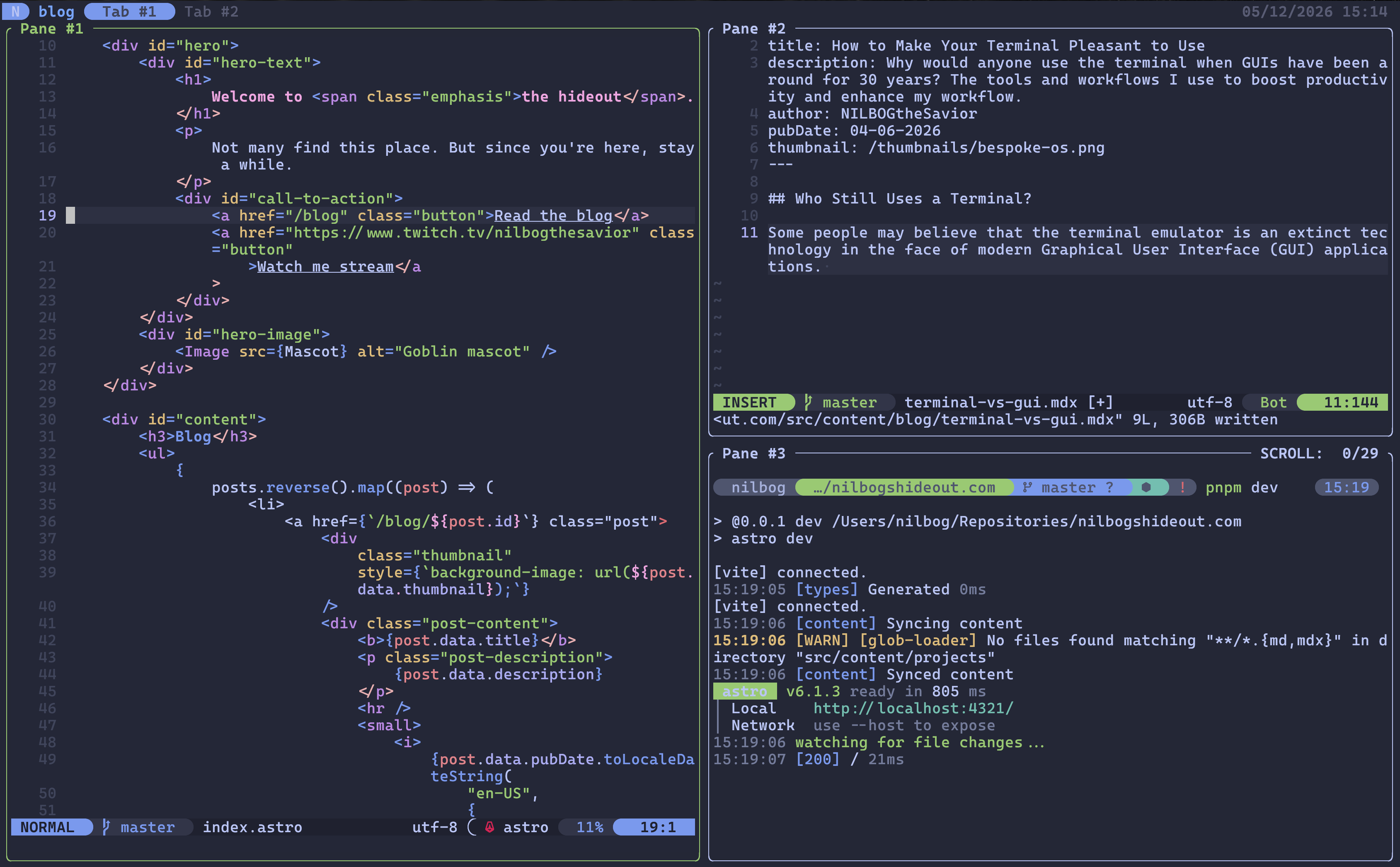
Making the Modern Terminal Pleasant to Use
The tools and workflows I use to boost productivity and enhance my workflow using the command line interface.
Introduction
Since the rise of the modern Graphical User Interface (GUI) in the 1980s, the general public ditched the intimidating Command Line Interface (CLI) for a far more accessible and convenient alternative. While the GUI allowed the masses to more readily adopt new technologies, it sacrificed many capabilities of the CLI such as digital autonomy, scripting, and the ability to handle large volumes of data.
Since the early days of computing, several tools have been developed, transforming the terminal into a highly configurable tool for power users who value performance and aesthetics. In this post I will discuss the advantages of terminal based development as well as the modern tools that transform the terminal into a powertool.
Abstraction of Power
While GUIs made interacting with computers more accessible to the general public, many limitations are introduced, based on what the developers think users will do with their systems. This means that if the developers didn’t build a button or menu for that action, it’s not possible to perform that action from that application. On the other hand, in the terminal, with a command and a couple of flags, these restrictions are removed completely.
Terminal tools leverage the Unix Philosophy: write programs to do one thing and do it well. These programs output information via a stream of characters, meaning that outputs can be piped into other programs. This allows programs to be modular pieces to a much larger system, compared to the monolithic approach of GUI applications which rarely integrate well with other apps. Leveraging command line applications allow you to build a workflow around your needs rather than relying on the decisions of other developers.
GUI applications also rely on the user manipulating the mouse to click on menus in order to perform meaningful actions. While this is intuitive for new users, it makes certain actions repetitive. Take for example, renaming video files in a directory. If I wanted to rename 10 files in a directory, I would need to right click on a file, click rename, type in the name, click confirm, and then repeat. On the other hand, in the terminal, a simple shell script handles hundreds of files simultaneously while creating a reusable asset for the future.
GUI applications rely on settings or preference pages for configuration. This makes it difficult to replicate across devices. Command line applications usually use a text based configuration file, making it a portable and deterministic method for setting and storing configuration options.
The Terminal Emulator
When discussing the topic of making the terminal pleasant to use, optimizing the terminal emulator is the prerequisite. The default terminal that comes installed with MacOS and Windows lack several customizability features that comes with open source alternatives, such as theming and keybinding. The terminal emulator is essential since the way the terminal interacts with the operating system should be unified across all systems, whether its the keybindings or the Command Line behavior.
My go to choice on Unix based systems and macOS is Kitty terminal, a graphics accelarated terminal emulator with a highly customizable config file. The hardware acceleration makes for a smooth experience with minimal latency, especially when running iterative programs that print several lines of text to the standard output. I seldom use Windows, though when I need to, I use Alacritty, since Kitty is not available on the platform. Alacritty is performant and highly customizable, meaning that I can have it launch in Windows Subsystem for Linux (WSL2) at my root directory.
The Shell
The shell is the REPL program that runs when you launch your terminal emulator. It’s what interprets the commands and displays the results on the standard output, and is a way to automate tedious tasks using shell scripts. The most common shell is Bourne Again Shell (Bash), which is the default of most Linux distributions. ZShell (Zsh) is a more modern take with many improvements and quality of life features. Zsh also is the default shell on macOS.
I have now made Zsh my shell across all devices due to the several features that are missing from Bash, such as syntax highlighting and a decent autocomplete feature. While these are technically implementable in Bash, it requires a lot of scripting and configuration, and I did not find it reliable enough during edge cases.
Zsh has several plugin managers. OhMyZsh is highly recommended for beginners due to its feature rich, plug and play nature. However, I opted for Antidote due to the simple plugin installation process. I personally prefer a lower overhead and higher level of control than OhMyZsh provides, however, for exploring the potential features of Zsh, it’s a good choice.
The Text Editor
A terminal based text editor is an essential component for any developer that experiments with systems and servers. Compared to a GUI text editor such as VS Code, a TUI based editor is faster, more versatile, and can be used on remote systems via SSH. It is especially handy while troubleshooting systems issues from the TeleTYpe (TTY) interface.
Neovim is a modern, modal text editor. It’s a fully-featured form of Vim that relies on a community of contributors for development of the editor itself, as well as the massive ecosystem of plugins that transform Neovim into a modern Integrated Development Environment (IDE). Neovim plugins diminish the line between a GUI and a TUI, from a file tree to Language Server Protocol (LSP) and Debug Adapter Protocol (DAP), a well configured Neovim installation exceeds traditional IDEs in both performance and user satisfaction. Having the quality of life features of a full IDE while leveraging the modal, keyboard driven nature of Neovim, combined with the economic handling of resources elevates this text editor far above resource-heavy Electron based graphical environments such as VSCode.
The Terminal Multiplexer
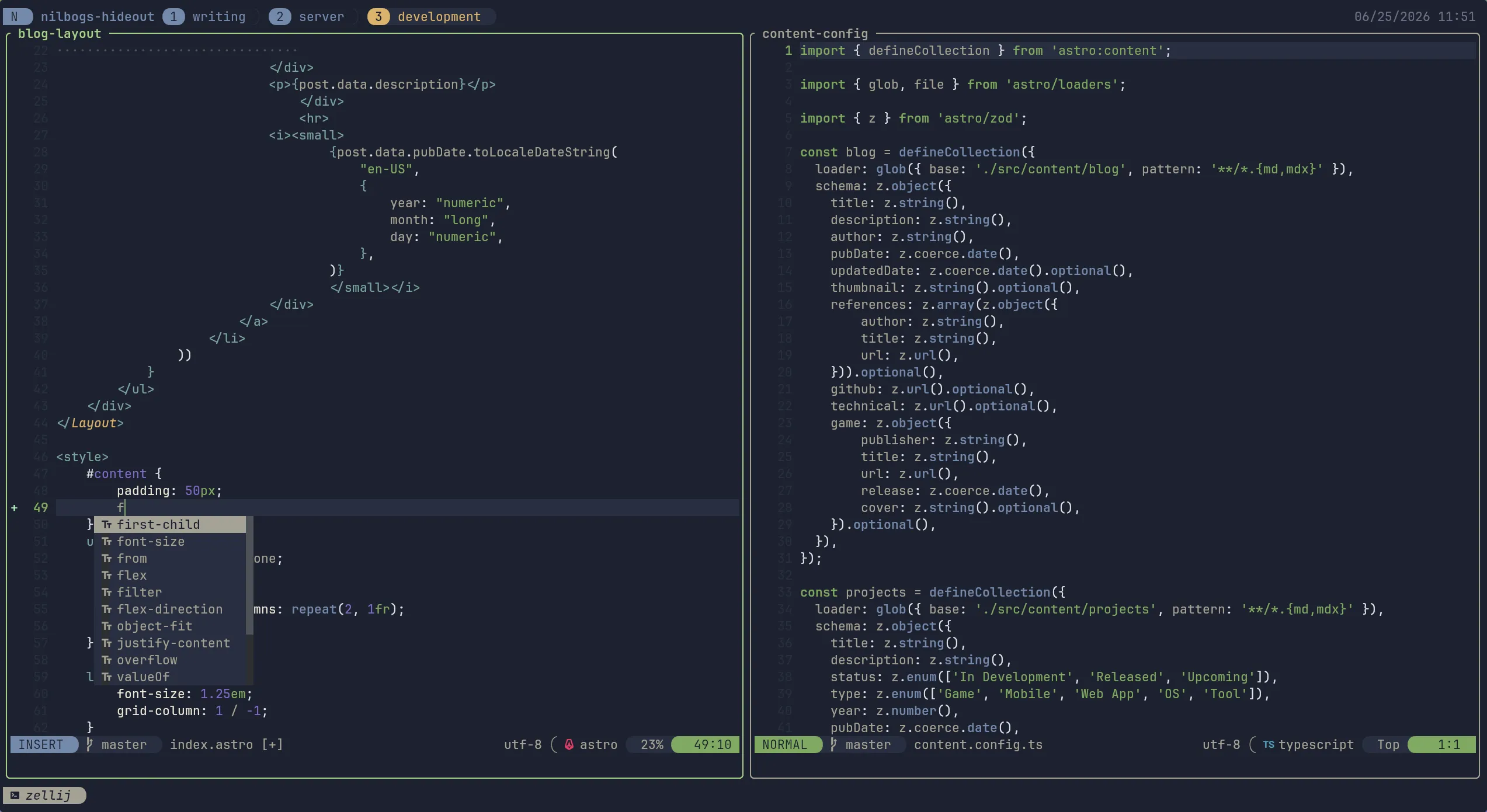
Having a way to switch between multiple sessions reliably, especially when you have several terminal windows open for programming, building, writing, or whatever else may be needed for a particular project, is a very handy feature that those who are used to GUI IDEs are sure to miss. That is where a terminal multiplexer comes in. A terminal multiplexer allows you to effectively make use of tabs and panes, as well as allow you to store and save your workspaces, known as sessionizing. Sessions persist even after restarting your computer.
The two most well known multiplexers are TMUX, a reliable and established multiplexer that has been around for years, and Zellij, a newer, community driven multiplexer, that has a growing number of plugins, known for its customizability. Similar to Neovim, I decided to go with Zellij due to the universal nature of the plugins and ability to build a config once and use it everywhere, rather than relying on shell scripts as you may have to do with TMUX.
The Terminal Prompt
The terminal prompt is a visual upgrade to the default terminal prompt. It allows you to customize the look and feel of your terminal, as well as display visual information such as GIT information, the type of project (C, Python, etc.) and much more. Those who prefer minimalism may decide to forgo a custom terminal prompt, but those like me who appreciate visual enhancements would benefit spending some time customizing their terminal prompt. The terminal prompt that I use is Starship, due to its speed and simple yet effective config file.
Modern Takes on Common Terminal Tools
lsd - an ls alternative
lsd is a visual upgrade over the ls command, with improved coloring, icons, and some enhanced functionality, such as listing directory trees.
bat - cat with wings
bat improves on the functionality of cat. Not only does it implement syntax highlighting, it also adds more useful features such as line numbers and paging.
fzf - a blazingly fast fuzzy finder
fzf allows you to search through anything in your terminal, from files to program outputs to your filesystem. It’s simple design philosophy makes it easy to use and fast as hell, since it does one thing and one thing only.
ripgrep - a faster grep alternative
ripgrep is a modern reinterpretation of grep, with enhanced aesthetics, smarter searching, and faster performance.
Standardizing your Config with Dotfiles
Once you have a setup that you’re happy with, the next step is to store your configuration files in a centralized repository. This allows you to standardize your configuration across multiple devices. A dotfiles repository on GitHub and a simple shell script that links your files to the .config directory on your system is an easy and reliable way to make sure that your configs stay up to date on all systems, including any changes made over time. A symbolic link ensures that when you pull changes from your repository, they are automatically updated in your .config directory.
This would also include changes to your .zshrc or .bashrc files where you may have aliased modernized versions of common terminal tools. This allows you to unify your experience across multiple devices and operating systems, a game changer when you begin using your terminal for all your programming.
Conclusion
Ultimately, with an optimized setup and practice using your terminal for everyday tasks, the terminal will allow you to overcome the limitations on productivity that modern GUI applications impose on users for the sake of accessibility. As power users, manipulating your files via the terminal gives you a degree of control over your system that no GUI application could come close to.